Users Module
As an EPMS/EASI Admin, the Users Module gives you full control to manage user details within an organization. Access it through the Organization Module, where the landing page provides a comprehensive list of all users associated with the selected organization.
User Module Overview
The users are displayed in a clean, tabular format that includes:
- Name
- ID
- Role (Admin, Employee, UBO)
- Phone Number
- KYC Status
- Status of User (Active, Inactive, Onboarding)
- Actions
Filtering and Searching Users
Effortlessly locate users using the available filters and search options:
- Filter by Cardholders/Non-Cardholders
- Search by User Name
- Status Column Filter:
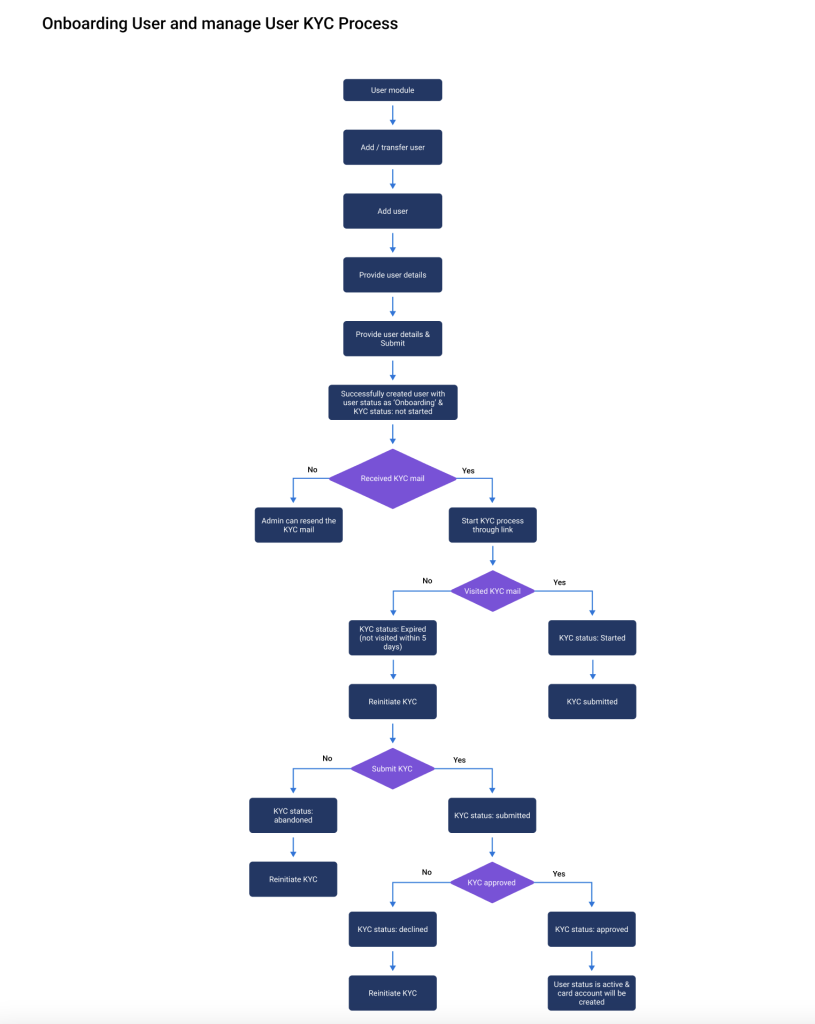
- Onboarding: The default status after completing cardholder onboarding.
- Active: Set once the user completes their KYC process.
- Inactive: Applies when a user is deactivated.
4. KYC Status Filter:
- No KYC Requested
- Pending
- Expired
- Approved with Card (KYC approved, card created)
- Approved without Card (KYC approved, no card created)
Available Actions for Each User:
As an EPMS / EASI admin, you have the following actions available for each user in the row.
Edit User Details
Click the Edit icon to modify user information. All editable fields will be available for updates.
Assign or Remove UBO Role
Toggle the UBO Role for any user by clicking the User Icon in the Action column:
- Blue Icon: UBO Role assigned.
- Grey Icon: UBO Role removed.
More Actions
Expand the More menu for additional options:
- KYC Status: Check the user’s KYC details and, if expired, reinitiate the KYC process with a single click.
- View Rules: Launch a popup to review the specific rules applied to the user.
- Transactions: Redirect to the Cardholder Transactions page to view and manage all user transactions.
- Manage Cards: Access a dedicated page to view and control card statuses.
- Spend Analytics: Dive into detailed metrics of the user’s spending activity.
Manage Cards
On the Manage Cards page, view all associated cards in a table with:
- Card ID
- Card Status
- Reason for Blocking
- Actions (Block/Unblock)
Blocked all cards? A Request Card button becomes available for initiating new card requests.
Spend Analytics
Gain insights into user spending with:
- Spent Amount: Total amount spent.
- Total Amount: User’s total balance.
- Available Amount: Remaining balance available for spending.
Visual Representation: A doughnut chart presents the data for quick analysis. Use the Month Filter to view specific details for a selected month.
Adding or Transferring Users
From the Users Module landing page, add or transfer users:
- Click Add/Transfer User to open the action popup.
- Choose Add User to onboard new cardholders or employees following the onboarding process.
- Choose Transfer User to transfer a user to a different organization:
- Use the User Selector to pick the user.
- Use the Organization Selector to select the target organization.
- Complete all required fields to finalize the transfer.
Key Features Summary
The Users Module equips you with robust tools to manage users effectively, ensuring seamless operations for your organization. Whether editing details, managing roles, or analyzing spending, every action is designed for simplicity and efficiency.