Roles and privileges
Super Admin Role:
In every organization, there will be exactly one user designated as the Super Administrator. The primary responsibility of the Super Administrator is to manage and configure user permissions within the organization. This includes setting up new user roles (e.g.EMPLOYEE, EPMS Admin, UBO), modifying existing configurations, and ensuring that all user settings comply with organizational policies and regulatory requirements.
Super Admin Creation Summary:
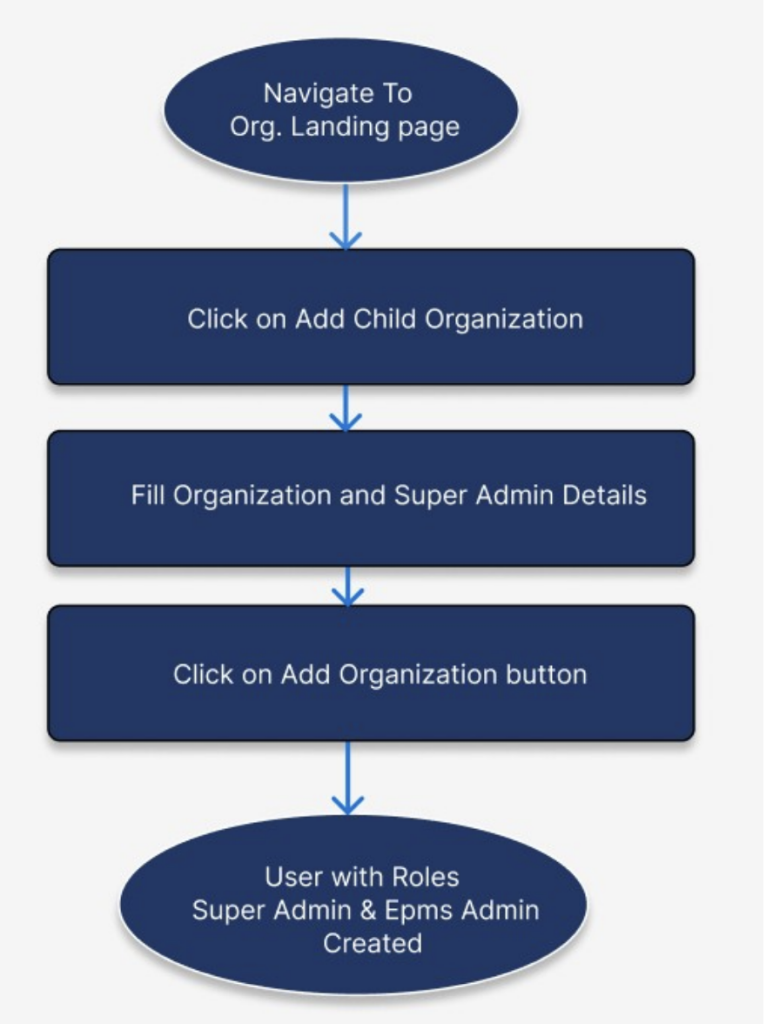
On the organization module landing page, click the “Add Child Organization” button to access the create organization page. Here, an admin is associated with the organization, and both the admin and organization details need to be filled out. After submitting all details by clicking “Add Organization”, a new user is created with a Super Admin role. Additionally, this user is assigned the EPMS Admin role by default.
Privileges for super Admin Role:
Super Admin has the authority to activate/deactivate users, update other EPMS Admin details, and modify EPMS Admin privileges, including employee and UBO roles as well.’
Access Privileges:
Access privileges are of Two types:
a. Global Level Access privileges
b. Org Level Access privileges
Global Level Access privileges:
Global access privileges are uniformly configured across all organization users, mirroring their roles. These privileges are meticulously defined at the role level to ensure consistency and ease of management.
Assigning Global level privileges to Super Admin:
Upon creating an organization, a super admin is automatically created. By default, the super admin receives global privileges associated with the “Super Admin” role. As a result, the super admin has the authority to manage and configure the states and privileges of other users within the organization.
Creation and Assignment of Organization-Level Privileges to EPMS Admins
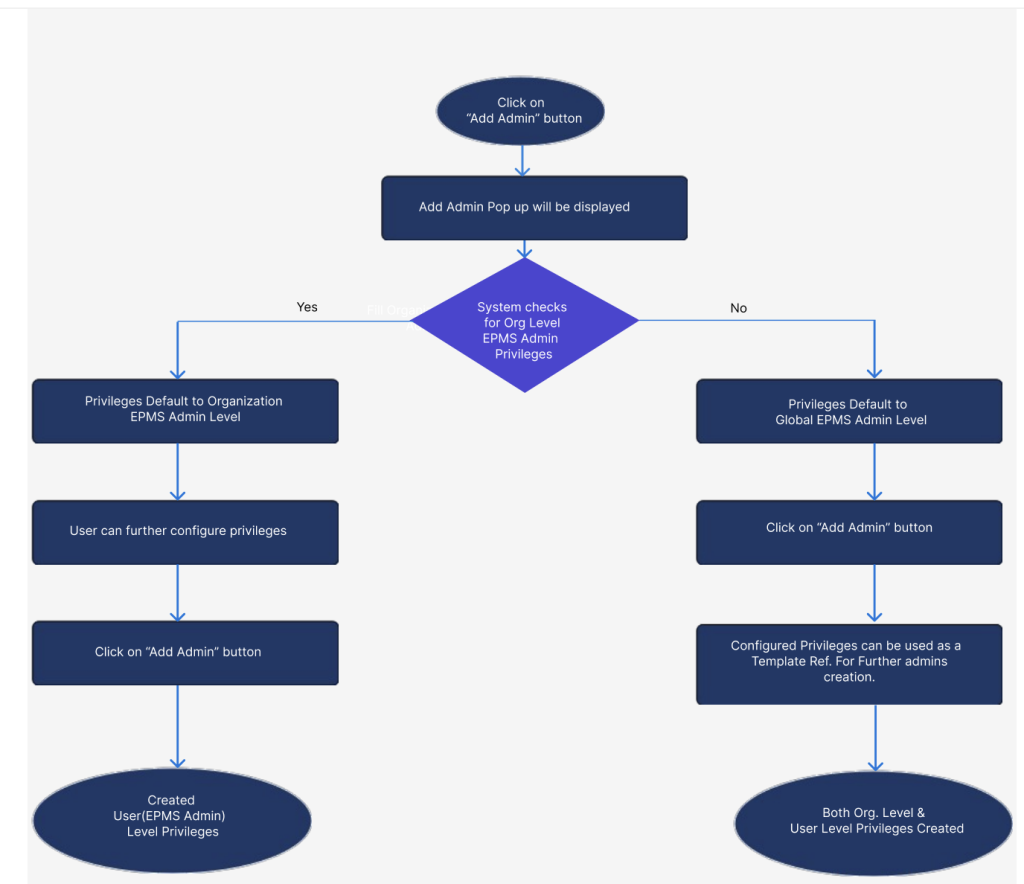
When an organization is created, a super admin is automatically created. To add EPMS admins, navigate to Admins and UBO module and click on “Add Admin” button. Clicking the “Add Admin” button opens the admin creation form. The system checks if there are any existing organization-level EPMS admin privileges for the organization. If privileges are available, they are pre-populated in the form. For the first-time creation of an EPMS admin, the access privileges section defaults to global-level EPMS admin privileges. After configuring the organization-level EPMS admin privileges, submit them. These privileges will then be applied to future EPMS admin creations, serving as a template for new admin access levels within the same organization.
Creation and Assignment of Organization-Level Privileges to EMPLOYEE:
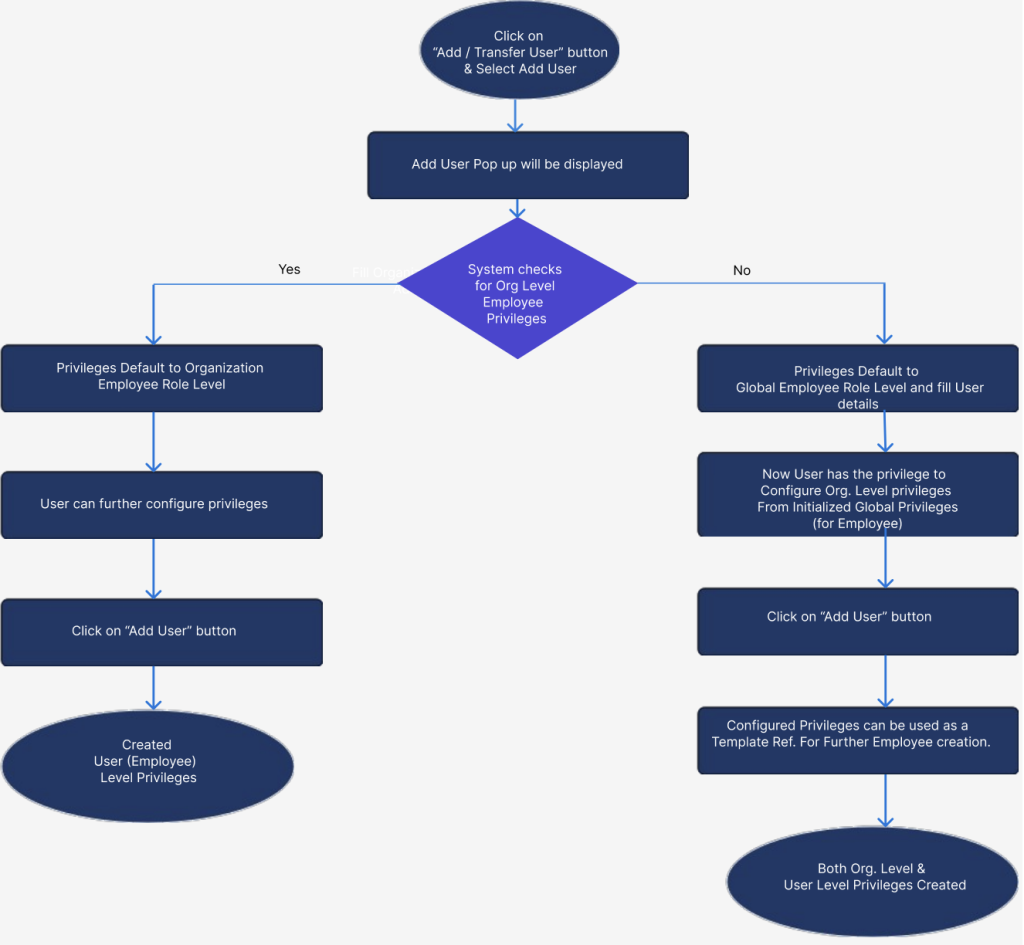
To create an employee within an organization, start by accessing the Organization users module and clicking the “Add / Transfer User” button & then select Add User. This action will open the “Add User” form. Within this form, you can set up access privileges using the available organizational-level employee Privileges. If this is the first time an employee is being created, the privileges section in the form will default to global-level employee privileges. Once you configure the desired privileges, save the settings. These configured privileges will then be saved as the organization-level template, making them readily available for use in creating future employees with in the same organization.
Editing the access privileges for the user:
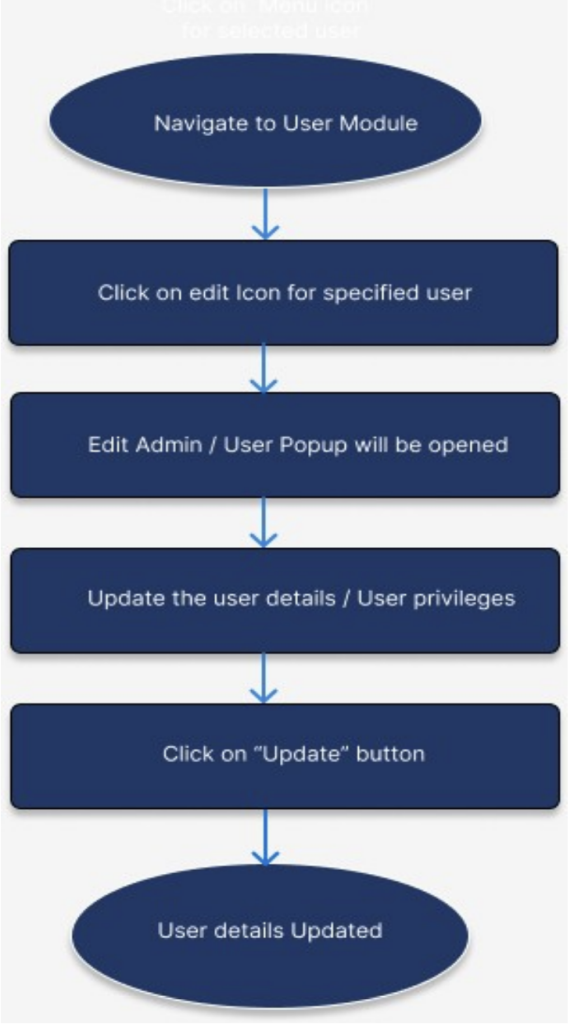
Users’ privileges can be edited by the super admin, allowing updates to access rights across various modules according to the specified settings. To modify the access privileges for EPMS Admin and Employees, navigate to the users module, find the specific user in the grid, and click the edit icon located in the actions column then you can update the access privileges.
Transfer privileges:
As an EPMS Admin, you can transfer privileges to other EPMS Admins within the same organization. By doing so, the recipient will gain transferred privileges along with existing privileges.
To initiate a privilege transfer, navigate to the Access Privileges module under the Users section. Locate the specific EPMS Admin from whom you wish to transfer privileges, and click on the menu icon available in the actions column from the dropdown menu, On the landing page of access privileges you can click on “Transfer Privileges”. This will open the Transfer Privileges popup
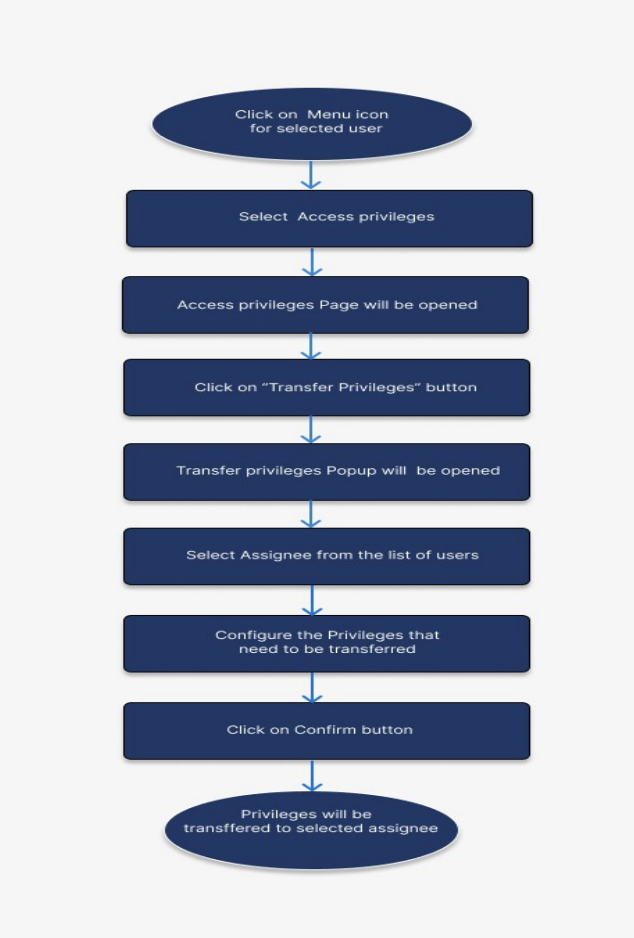
On the right-hand side of the popup, you will see username of selected user from user module and listed under the Assignor section. And on the left side, the Assignee section will automatically populate with the first user in the list. You can choose another user to receive the transferred privileges by selecting their name. Additionally, you can review both your current and the recipient’s access privileges. After selecting the privileges in the Assignor section, click the Confirm button. This action will transfer the selected privileges to the chosen Assignee.
Change Role:
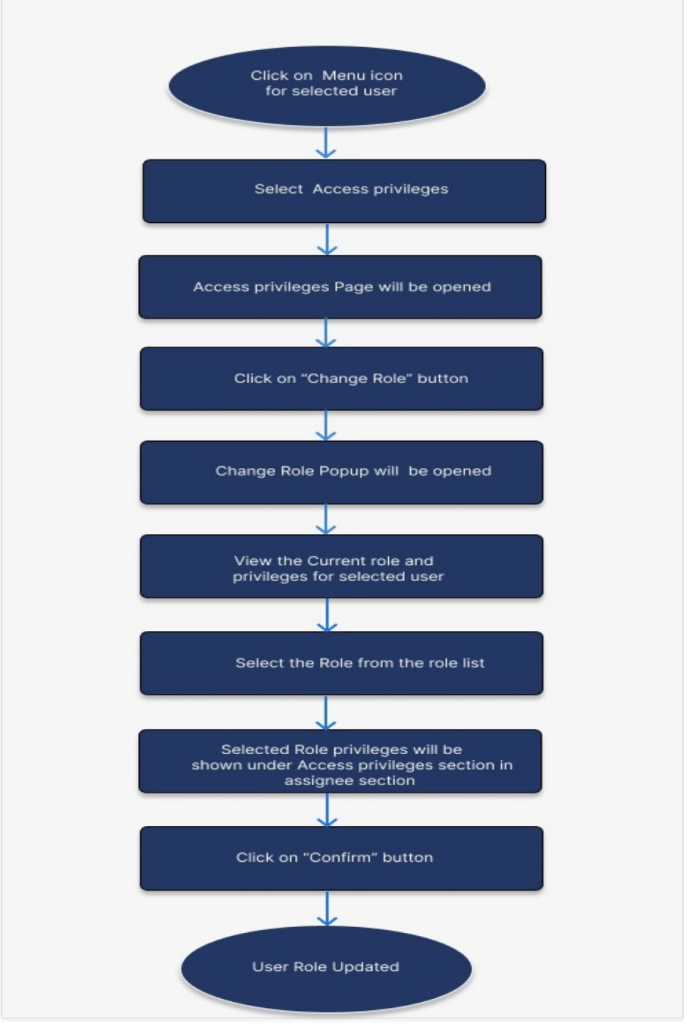
To change a user’s role, select the access privileges option from the preferred user’s menu item. This will redirect you to the access privileges page, where you’ll find a “Change Role” button. Clicking this button opens a popup displaying the user’s existing privileges. If you select a different role, the privileges list will update accordingly, reflecting those associated with the new role. After confirming your selection, the user’s role will be updated, and the corresponding access privileges will be applied
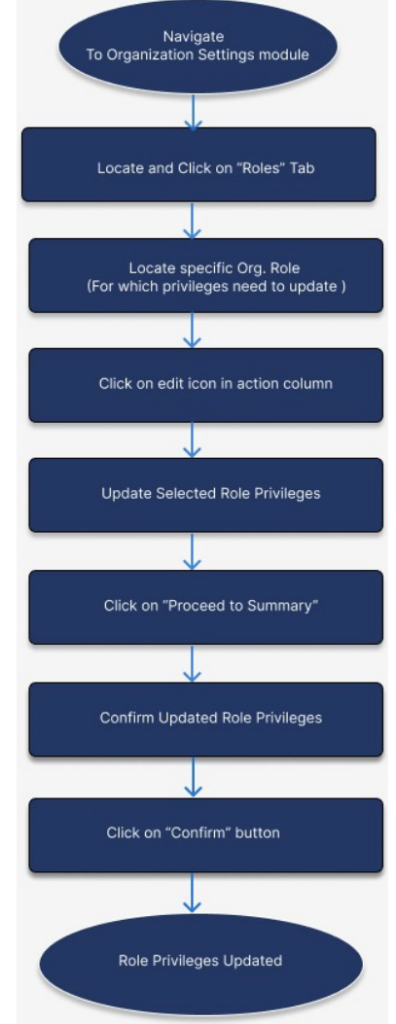
Update Organization Configured Roles :
Once organization privileges are set up for each role (Employee and EPMS Admin), you can modify these privileges at the role level. As a Admin, follow these steps to update organization privileges:
Access the Settings module within the Organization module.
- Click on the “Roles” tab in the left navigation panel.
- Browse through the list of roles configured at the organization level.
- Locate the role you wish to edit and click on the edit icon in the action column.
- An Edit Role popup will appear; make the necessary updates to the role.
- Click on “Proceed to Summary” to review the changes.
- Confirm the updated privileges for the selected role.
- Click on the “Confirm” button to finalize the changes.