Onboarding Cardholder
Learn to introduce and verify your users and get them started with EASI Portal
1.Onboarding Employees or Cardholders
As an EASI/EPMS admin, you can onboard employees or cardholders through the Users Module for the selected/your organization. Follow these steps to ensure a smooth onboarding process:
1. Access the “Add/Transfer User” Feature Navigate to the Users Module and locate the “Add/Transfer User” button. This button pro-vides a dropdown menu with two options:
- Add User
- User Transfer
2. Add a New User Select “Add User” from the dropdown. This action opens the Add User popup, where you can enter the following user details:
- First name
- Last name
- Employee ID
- Address details (and other required fields specific to your setup).
3. Complete the Onboarding Fill in all the mandatory fields, then click “Add User” to create a new user within the selected organization.
Note: Ensure the Organization Rules are configured before onboarding employees or cardholders. These rules serve as prerequisites and must be in place for successful user creation.
By following these steps, you’ll be able to efficiently onboard employees or cardholders while main-taining compliance with organizational requirements.
2.Initiating KYC for Cardholders
As an admin, you play a crucial role in ensuring that the Know Your Customer (KYC) process is ini-tiated and completed seamlessly for employees or cardholders. This section walks you through the steps to manage the KYC process effectively.
Employee Addition and KYC Mail
Once you add a new employee or cardholder to the organization’s user list, a KYC email is automati-cally sent to the user. The email includes a link for the user to start their KYC process.
Starting the KYC Process
- Inform the user to check their email for the KYC link.
- The user must click the link and complete the KYC form by submitting all required details.
Resending the KYC Mail
If the user reports not receiving the KYC email, you can take the following steps to resend it:
1. Navigate to the Users Module
- Access the Users Module landing page for the organization.
2. Locate the User
- Identify the specific user in the list.
- Click the menu options icon in the user’s row.
3. Check the KYC Status
- Select KYC Status from the dropdown menu.
- The KYC Status popup will display the user’s current status.
4. Resend the KYC Mail
- If the user’s KYC status shows as Onboarding, the Resend KYC Mail button will be enabled.
- Click the button to resend the KYC link to the user’s email.
Tips for a Smooth Process
- · Remind the user to check their spam or junk folder if the email isn’t in their inbox.
- · The Resend KYC Mail option is only available for users with an Onboarding status.
By following these steps, you can ensure the user completes the KYC process promptly.
3.Cardholder KYC Process with KYC Provider
As part of the onboarding process, employees or cardholders must complete KYC verification with the designated KYC provider. This process begins when the user receives a KYC verification link via email. The user’s KYC status will update dynamically based on their actions during the process.
KYC Statuses and Their Meanings
- Not Started The initial status is set to “Not Started” when the user receives the KYC verification link in their email but has not yet interacted with it.
- Started : Once the user clicks on the verification link to begin the process, their status changes to “Started”.
- Abandoned : If the user clicks on the verification link but does not submit the required details within five days, the status updates to “Abandoned”.
- Submitted : When the user completes the required steps and submits their details to the KYC provider, the status updates to “Submitted”.
- Approved : After the KYC provider reviews and approves the submitted details, the status updates to “Ap-proved”.
- Declined : If the KYC provider reviews the details and determines they do not meet the required standards, the status updates to “Declined”.
- Expired : If the user does not click on the verification link within five days of receiving it, the status up-dates to “Expired”.
By monitoring these statuses, you can ensure cardholders complete their KYC verification in a timely manner and take appropriate actions for any exceptions.
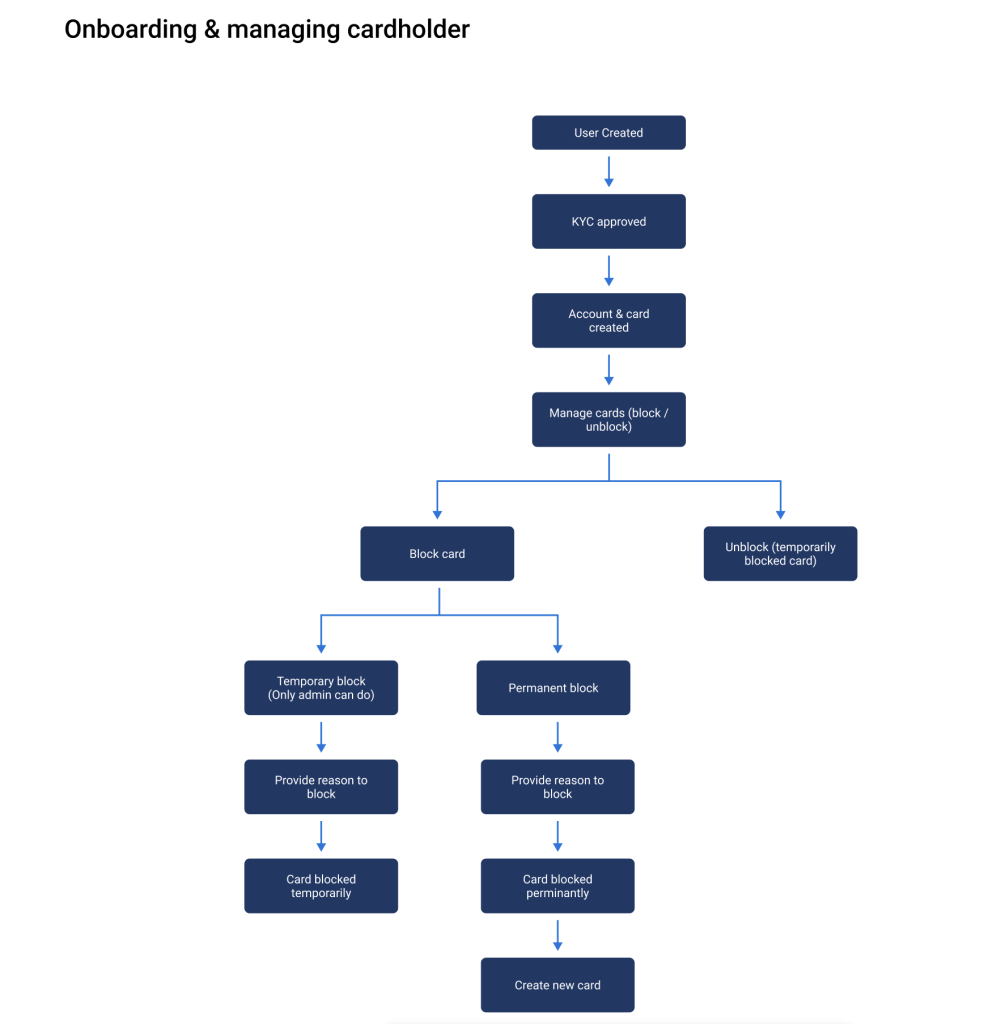
4.Onboarding Cardholder with Account at the Processor End
- Account Creation An account is created for the cardholder at the processor’s end, enabling all subsequent card-related activities.
- Active Card Issuance An active virtual card is issued to the cardholder and linked to their newly created account. The card is immediately ready for use.
5. Physical Card Manufacturing
After the account and card are successfully created, the processor initiates the manufacturing of the physical card. The physical card is then dispatched to the cardholder. Card Blocking and Unblocking Features- · Admin Control From the application portal, admins can block or unblock cards for cardholders as needed.
- · Cardholder Control Cardholders also have the provision to block or unblock their own cards directly through the application.
- Navigate to the Card Accounts tab and click the “Request Payment” button.
- A payment request window appears, where you can enter the amount to be transferred.
- Click the “Request” button to create the payment request.
- Initially, the payment request status is set to “Created”.
- You can authorize or terminate the payment request directly within the payment request window.
- All payment requests are listed in the Payments module.
- From this module, you can also authorize or terminate payment requests.
- Completed: If the authorization is successful, the payment request status changes to “Completed”, and the funds are transferred from the company to the EASI account.
- Failed: If authorization fails, the status changes to “Failed”.
- Cancelled: If the authorization process is canceled by the user, the status updates to “Cancelled”.
- Terminated: If the user terminates the payment request, the status changes to “Termi-nated”.