Managing Transactions
The Transaction Management Module in EASI allows you to process, validate, update, and oversee transactions with seamless integration with the processor and ERP systems.
Transaction Authorization Request
Processor Sends Transaction Authorization Request
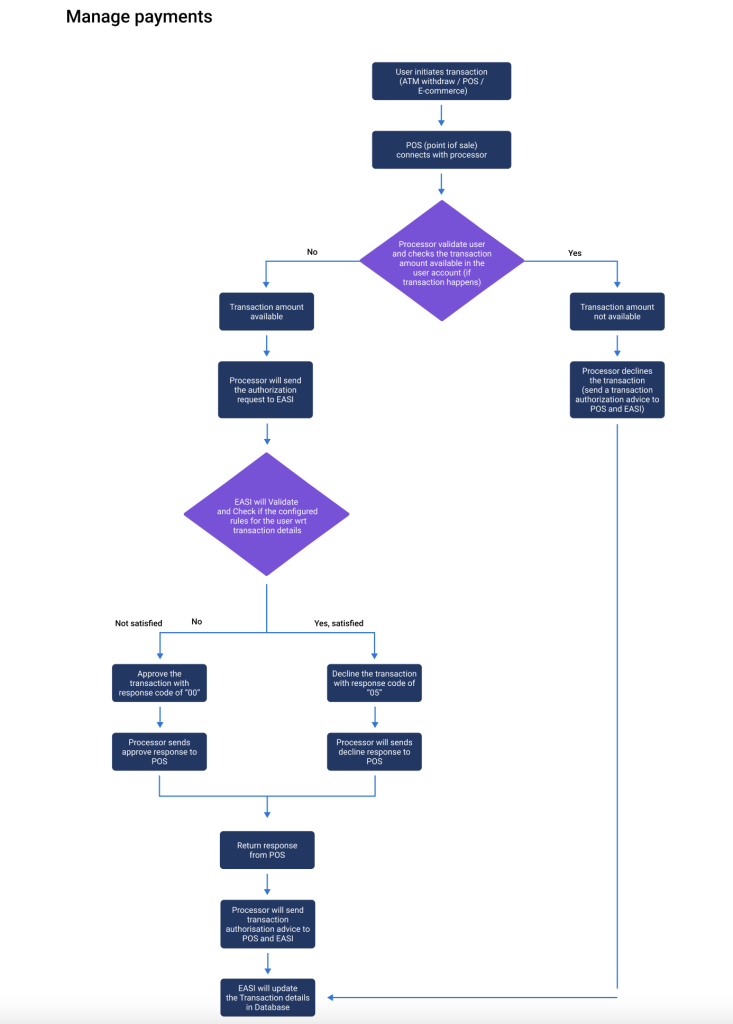
Whenever a user initiates a transaction (e.g., ATM withdrawal, merchant purchase, or e-commerce), the Point of Sale (POS) connects with the processor, sending transaction details.
1. Validation by the Processor: The processor validates the user’s account, ensuring sufficient balance for the transaction. If val-idation succeeds, a Transaction Authorization Request is sent to EASI.
2. Additional Authentication for E-commerce: In the case of online transaction made on an e-commerce website, the processor will perform an additional layer of authentication to verify the user’s identity. This may involve to provide card details for validation by the user, after which a 3D Secure notification will be sent to the user’s mobile phone. Upon successful authentication by the user, the processor will then send the authorization request to EASI.
Validating and Processing the Authorization Request
EASI Validates Transaction Authorization Request
When EASI receives the authorization request, it validates the transaction against the configured rules for the user.
- Approved Transactions : If all rules are satisfied, EASI sends an approval response with the code “00”, indicating that the transaction can proceed.
- Declined Transactions : If any rule is violated, EASI sends a decline response with the code “05”, indicating that the transaction will not be processed.
In both cases, the processor will gather the return response from the Point of Sale (POS) and send a Transaction Authorization Advice with a code of “00” in Approve case and with a code of “05” in Decline case to EASI . This completes the authorization process and allows EASI to update its records accordingly.
This ensures all transactions align with user-specific rules and provides a clear outcome to the proces-sor.
Transaction Authorization Advice
Processor Sends Authorization Advice
After receiving EASI’s approval or decline response:
1. Processor Action:
- For an approval response, the processor approves the transaction.
- For a decline response, the processor declines the transaction.
2. Transaction Authorization Advice: The processor collects the return response from the POS and sends a Transaction Authoriza-tion Advice to EASI, completing the authorization process.
EASI Updates Transaction Details
Based on the processor’s Transaction Authorization Advice, EASI updates the transaction details and their related state in its records.
During the Advice time, EASI Will predict the transaction vat, net, dynamic fields & Account details like name and id based on the transaction history and Recurring transaction configuration(Only vat & net based on recurring transactions history).
Transaction Notifications
Processor Sends Notifications to EASI
In case of transaction failures, transaction updates and refunds (e.g., incorrect PIN, invalid card details, expired card), the processor sends a notification to EASI. These notifications are processed by EASI and relayed to the user for resolution.
Adding Receipts and Updating Transactions
Cardholder Actions
As a cardholder, you can access the Transactions Module in the EASI application to view and manage your transactions.
1. Upload Receipts:
- Navigate to the transaction details and upload a receipt.
- Update additional transaction details, such as tax information.
2. Submit Details: Once the receipt is uploaded, the extracted information can be updated, and the transaction de-tails are submitted for review.
Admin Review and Approval
Admins review the updated transaction details and manage them through the following statuses:
- Review Transaction: Admin reviews submitted details.
- Submitted Transaction: Transactions awaiting final decision.
- Approved Transaction: Transactions approved for final processing.
Workflow:
1. Review Details: Admin examines the submitted transaction details.
2. Approve or Reject: Admin approves correct details or rejects and sends them back to the re-view stage for corrections.
Posting Transactions to ERP
Finalizing the Process
Once a transaction is approved, its status moves to Approved Transaction.
1. Log in to ERP: Admins log in to the ERP system (if not already logged in).
2. Book the Transaction: Click the Book button in the ERP to finalize the process. The transaction is then moved to the Booked Transaction status.