Onboarding Company
The Organization Module allows you, as an EASI admin, to view and manage company details, update organizational information, and oversee related datasets.
Onboarding Company at EASI End
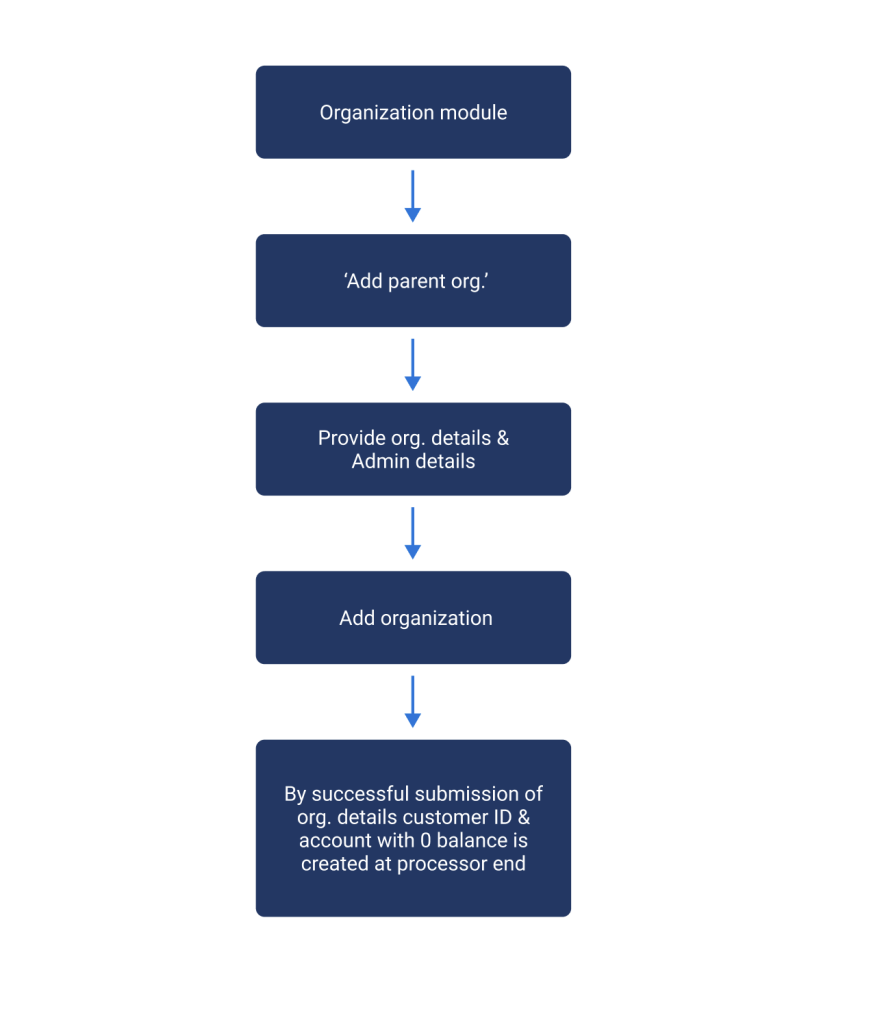
To onboard a company, sign in to the EasiB2B portal and navigate to the Organization section. Click the “Add Parent Org” button and fill in the required details. During this process, you’ll also need to assign an EPMS Admin for the newly onboarded company.
The organization tree structure allows you to navigate through different organizational levels. You can expand or collapse various levels and use the search feature to find specific organizations by name.
- Organization Details:
You’ll see the organization’s details in the Organization Details section. Click on the More Details link to view additional information, such as:
- Geo-location
- Company account
- Description and address details
- Activate/Deactivate Organization:
You can activate or deactivate the organization using the Activate toggle button. You will be prompted to confirm your action before finalizing it.
- Edit Organization Details:
To edit the organization’s details, simply click the Edit icon and update the necessary information.
- Create Child Organizations:
You can create child organizations by clicking the “+Add Child Org” button. The newly created child organization will be listed below the parent organization in the right-hand organizational tree structure.
- Default ERP Setup:
By default, the ERP for a newly created organization will be set to Fortnox.
Onboarding Company at Processor End
At the processor end, a Customer ID will be generated for the company, with the initial amount set to zero. Each organization will have its own unique customer ID.
Creating the Organization Account at Processor End
Once the organization details are successfully submitted, an Org account will be created at the Enfuce processor end with an initial balance of zero. The Customer ID will also be created upon account creation.
You can view the account details in the Card Accounts tab for easy reference and management
Settings
The Settings page in the Expense Management Admin Portal allows you to configure and customize key components of the portal to suit your organization’s needs. Active settings are marked with green checkmarks for quick identification.
You can navigate through the following categories on the Settings page:
- Custom Fields
- ERP Configurations
- Accounts
- MCC
Custom Fields
Custom fields allow you to create additional fields related to transaction details. These fields are displayed in the Transactions section of the EASI portal and in EMOB, based on the visibility op-tions you select.
To create a new custom field:
1. Click Add New Field.
2. Fill in the necessary details.
Important Notes:
· You can create unlimited fields, but only five fields can remain active simultaneously. Tog-gle between active and inactive fields as needed.
· The complete list of custom fields (active, inactive, or all) is available via the View dropdown.
· To activate or deactivate a field, use the toggle button in the Action column.
· You can edit custom fields or view complete details (e.g., field type and values) by expand-ing the field in the grid.
· Use the Transferable toggle button to enable or disable the transfer of field inputs to the ERP system.
ERP Configurations
ERP settings help you set up your ERP system for booking transaction details. Without proper ERP setup, booking transactions will not be possible.
You can choose between two ERP options:
· Visma
· Fortnox
Steps for Setting Up ERP:
1. Select your ERP option
- If you select Visma, complete the setup by providing the following information:
- Client ID
- Client Secret
- Integration ID
- Tenant ID
- You can view and edit the submitted ERP details under the ERP Details tab.
- The Transferable ERP tab displays custom fields with inputs transferable to the ERP.
2. If you need to switch to Fortnox, select it from the dropdown and click Change ERP to fi-nalize the change
Accounts
Accounts settings allow you to manage bookkeeping accounts related to transaction categories.
To Add a New Account:
1. Click Add New Account.
2. Choose between:
- Add by File Upload:
- Download the accounts list template in .csv or .xlsx format.
- Upload the completed template.
- Click Confirm to complete the upload.
- Add by Manual Input:
- Enter the account number and description (mandatory).
- Click Confirm to save the details
Additional Features :
- · You can sort the accounts list by default numbering or by recent/old updates.
- · Edit the Account Description, but not the account name, by clicking the Edit option.
MCC
MCC Settings allow you to manage and configure Merchant Category Codes (MCCs) efficiently for your organization. You can view MCCs grouped by merchant categories, filter them based on de-scriptions, and request updates for new MCC ranges or details.
Accessing MCC Settings
As an EPMS Admin, navigate to the MCC Settings tab under the Settings Module for your organi-zation.
The MCC Settings page displays:
1. List of Merchant Categories: By default, the first merchant category is preselected.
2. MCC Range Display: The table lists all merchants within the selected category.
Each MCC entry includes:
- MCC Code
- Description
- Status
Sorting and Filtering Options
- Alphabetical Filter: Filter MCCs by the first letter of their description.
- Sort by Date: Choose from:
- New to Old
- Old to New
Search Functionality
Quickly search the MCC list by entering keywords in the search bar.
Requesting an MCC Update
The Request MCC Update feature streamlines the process of adding or updating MCC ranges and details for your organization.
How to Request an MCC Update:
1. Access the Request Form: Click the Request MCC Update button.
2. Enter Range Details:
- Define a unique range in the From Range and To Range fields. Ensure the range does not overlap with existing ranges for other merchant categories.
3. Provide MCC Details:
- Add up to 6 MCCs within the defined range.
- Enter descriptions for each MCC (mandatory).
4. Validation:
- The system checks for overlapping ranges or duplicate MCCs and descriptions.
5. Submit the Request:
- Click Send to forward the request to the EASI Admin for review.
Example Scenario: If you’ve selected the “Business” category and want to add a new range for “Business & Services,” follow these steps:
- Click Request MCC Update.
- Enter a unique range (e.g., 4000–4500).
- Add MCC codes (e.g., 4010, 4020) with descriptions (e.g., “Consulting Services,” “Corpo-rate Training”).
- Submit the request.
Once approved, the new MCC details will be added to the system for use.
Key Notes on MCC Updates
- MCC ranges and details must not overlap with other categories.
- Duplicate MCC codes or descriptions will be flagged during validation.
- All updates are subject to EASI Admin approval.
By leveraging the MCC Settings and Request MCC Update features, EPMS Admins can ensure seamless management and configuration of merchant categories and codes for their organizations.
MCC Configuration by EASI Admin
EasiB2B provides EASI Admins with robust tools to manage Merchant Category Code (MCC) configurations. These include editing MCC ranges, updating MCC descriptions, and adding new MCCs to pre-selected merchant categories.
Edit Merchant Category Ranges
EASI Admins can directly update pre-selected MCC ranges via the MCC landing page.
How to Edit MCC Ranges
- Navigate to the MCC Landing Page: Select the desired MCC category.
- Click the Edit Icon: Locate the edit icon next to the chosen category.
- Edit MCC Popup: The Edit Merchant Category popup will appear, displaying all configured ranges for the selected category.
- Update Ranges:
- Adjust the ranges as required.
- The system will validate updates to ensure no overlaps occur with other MCC categories.
5. Save Changes: Once validated, your updates will be applied successfully.
Edit MCC Descriptions
Admins can also update MCC descriptions for a selected category.
How to Edit MCC Descriptions
- Locate the MCC: Navigate to the MCC list for the selected category.
- Edit Icon: Click on the edit icon in the Action column.
- Edit MCC Popup: Update the description of the MCC in the popup window.
- Validation and Save: The system will validate the input, and the updated description will be saved.
Add New MCC
EASI Admins can add new MCCs to existing categories using two methods: File Upload or Manual Input.
Method 1: Add by File Upload
1. Click Add New MCC: Use the Add New MCC button on the MCC landing page.
2. Select File Upload: Choose this option in the Add New MCC popup.
3. Upload File:
- Supported file types: .csv or .xls.
- Maximum file size: 2 MB.
- The file must include unique category ranges and associated MCCs.
4. System Validation: Once validated, the MCC list will be added to the selected category.
Method 2: Add by Manual Input
1. Select Manual Input: Choose this option in the Add New MCC popup.
2. Input Details:
- Enter the MCC ranges and descriptions for the selected category.
- Add as many MCCs as needed.
3. Save MCCs: The provided MCCs will be added to the selected category after validation.